Installation & Configuration
Please watch demo video (coming soon) (For Installation and Configuration) or follow below instructions
This section describes how to install and configure the KloudDB Shield Main Server. The Main Server acts as the central management and monitoring node. Collector Agents installed on PostgreSQL servers will communicate with this server.
Architecture Overview
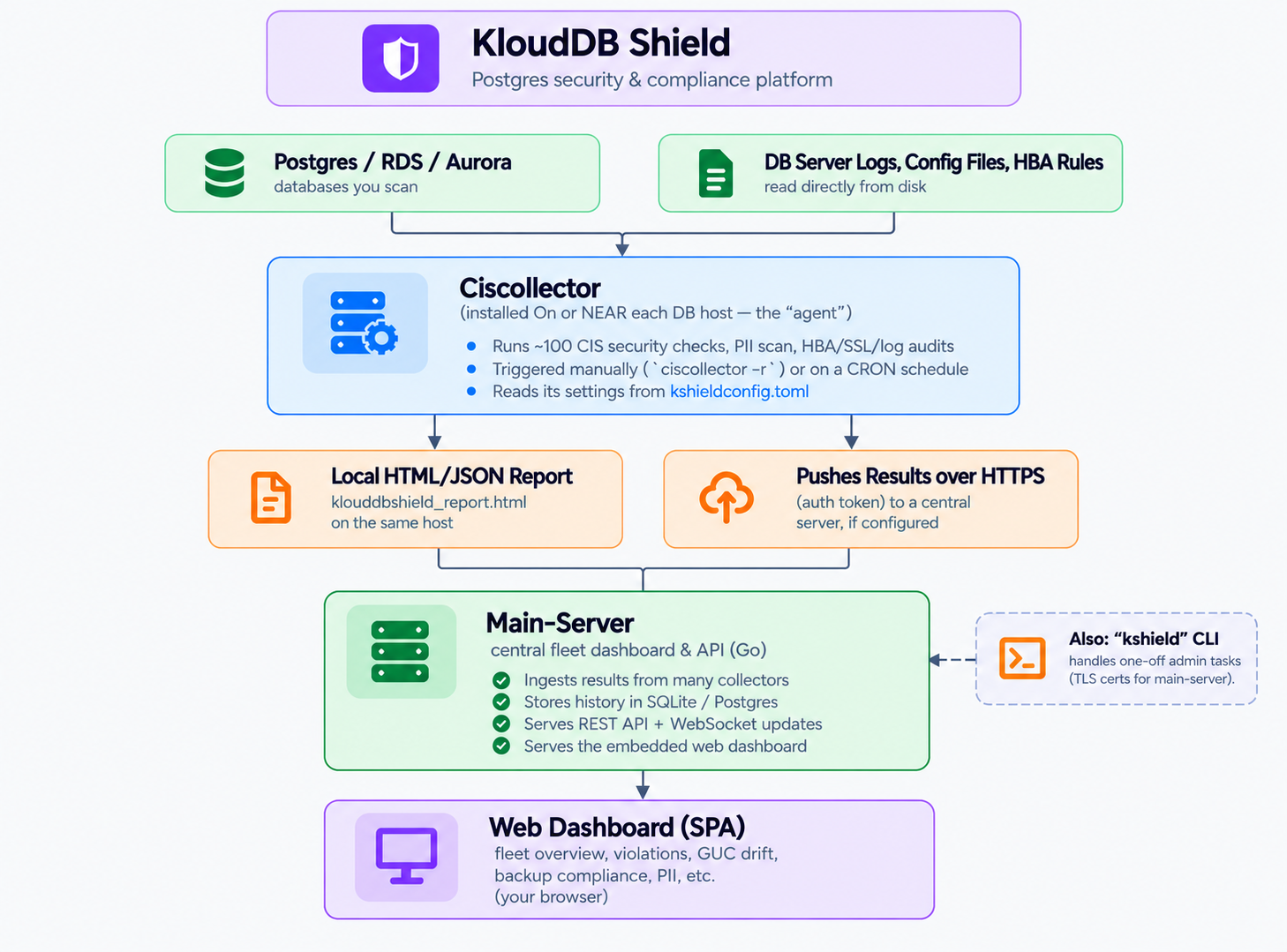
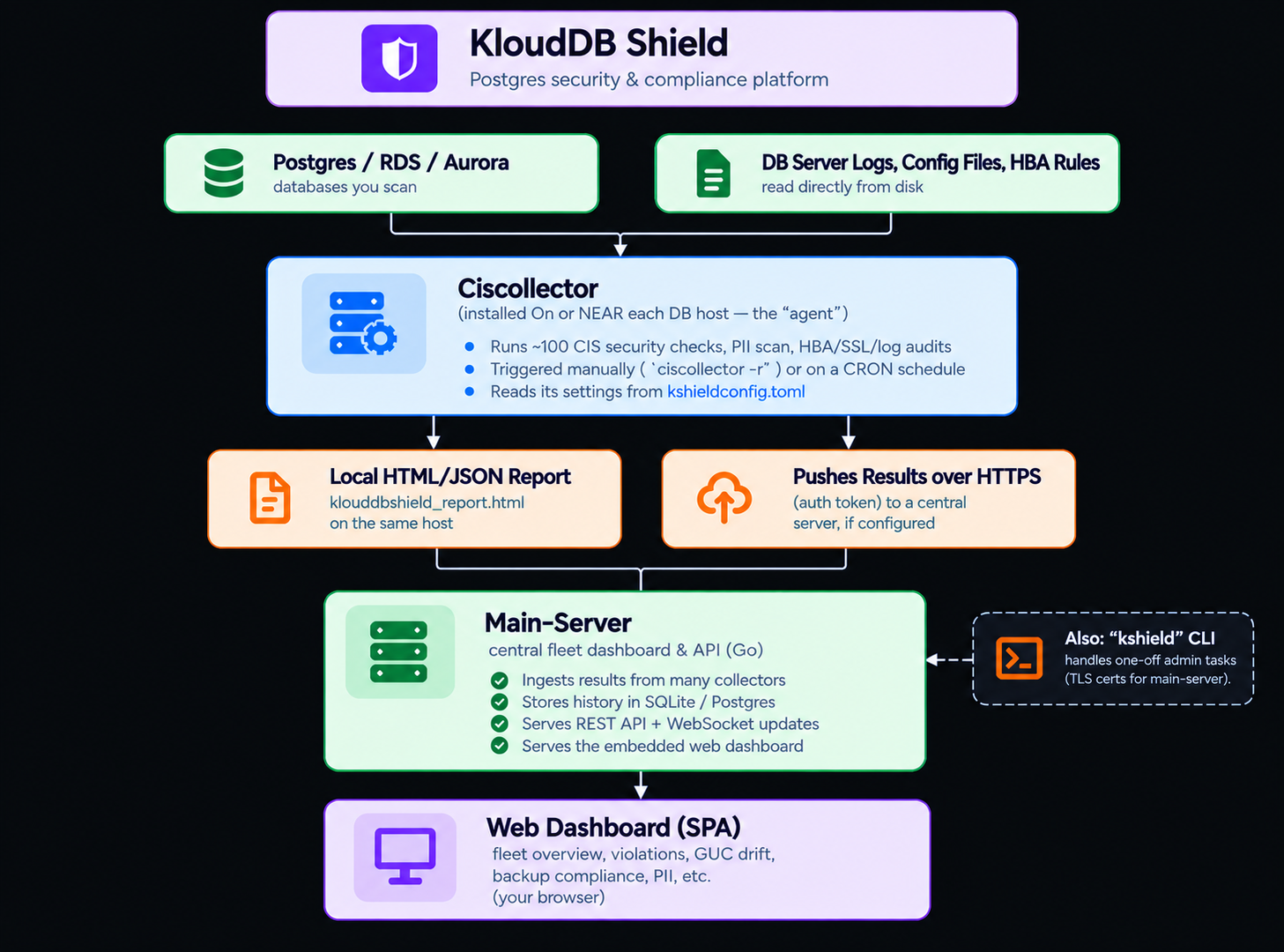
The deployment consists of:
Main Server – Centralized management server where the main package is installed.
Collector Agents – Lightweight agents installed on each PostgreSQL server.
PostgreSQL Servers – Database servers monitored and managed through the collector agents.
Main Server Installation and Configuration
Step 1: Install the Main Server Package
Install the appropriate package for your operating system.
Ubuntu
sudo dpkg -i main-server_2.4_linux_amd64.deb
Verify that the installation completed successfully before proceeding to the configuration steps.
Step 2: Configure the Main Server
After installation, edit the configuration file:
sudo vi /etc/klouddbshield/server-node.yaml
Generate unique values for the following fields:
token - Unique token used for collector communication (has to match with the one present in collector config)
role - Server role. For the main server, use postgres.
These values should be random and sufficiently long to ensure uniqueness and security.
Sample config file :
url: http://103.xx.xx.xx:8081
token: f89909507d587b9e24ab4de2413686e417fb973bbea9e59a1f95428257bb5b19
hostname: bastion
ip: 103.xx.xx.xx
environment: dev
role: postgres
After updating the configuration file, start the service:
sudo systemctl start klouddbshield-server.service
Enable automatic startup during system boot:
sudo systemctl enable klouddbshield-server.service
Verify service status:
sudo systemctl status klouddbshield-server.service
Step 3: Validate Connectivity
Confirm that the Main Server is listening on the configured port:
ss -tulpn | grep 8081 or netstat -tulpn | grep 8081
Expected result:
LISTEN 0 128 0.0.0.0:8081
Collector Configuration (On each Postgres Server repeat below steps)
1. Install the appropriate package for your operating system
ubuntu
 ciscollector_2.4_linux_amd64.deb
2. Configuration
You need to configure /etc/klouddbshield/kshieldconfig.toml as described below
# [postgres]
# host = "localhost"  -- > ip of server
# port = "5432"       -- > postgres port
# user = "postgres"    --> user credentials - give superuser or other required privs for this user (some of the modules like hbascanner etc.. need elevated access)
# password = "password123"
# dbname = "mydb"
# maxIdleConn = 10
# maxOpenConn = 100


# [collector]
# schedule = "0 12 * * *" --> this is the schedule for runs - Typically a weekend run is good enough for these scans - Some scans like logparser ,piiscanner can be slow and time taking
depending on the amount of logs ,  database size etc..

   Example for weekly run is schedule = "0 2 * * 6" (Every Saturday at 2 AM)

# scan_commands = "all"  # CIS + HBA + SSL + password leak + log parser + PII (uses [piiscanner]) -->Use "all" to enable all features(recommended) .. You also need to enable collector.logparser and piiscanner blocks below


# [collector.logparser] --> make sure you enable all of below parameters for log parser module

# NOTE - Please ensure that  log_connections=on and prefix at a minimum includes %m [%p]: [%l-1] db=%d,user=%u,app=%a,client=%h

# prefix = "%m [%p]: [%l-1] db=%d,user=%u,app=%a,client=%h "
# logfile = "/var/log/postgresql/*.log"
# hbaconffile = "/etc/postgresql/pg_hba.conf"


# [piiscanner] --> enable for pii scans
# run_option = "datascan" --> The other option is MetaScan, but the recommendation is to enable DataScan. We also support Spacy Scan—please refer to the additional documentation for more details on Spacy Scan
# database = "mydb"
# schema = "public"
# exclude_tables = ""
# include_tables = ""


# [app]
# hostname = "postgreshost1"  --> Collector node name: This is the label assigned to the host and will be displayed on the main dashboard
# debug = true


# [mainserver]
# enabled = true
# url = "https://shield.example.com:8081"  --> This is the web server (dashboard server URL- same one you gave in main server config)
# token = "your-shared-secret"  --> NOTE - This has to match with the token you created on main server
# push_interval = "30s"
# offline_threshold_sec = 90
# tls_ca_file = "/etc/klouddbshield/certs/ca.crt" --> Optional - Please see instructions in guide
3. Start the collector service
sudo systemctl enable ciscollector.service
sudo systemctl start ciscollector.service
sudo systemctl status ciscollector.service
Your installation is now complete. You can access your dashboards using the central server URL, for example: http://xx.xx.xx.xx:8081. The steps below can be ignored, as they apply only to users following the older installation method who choose to continue with it . Please reach us at support@klouddb.io for any help